获得一个Linux操作系统
服务器 + 云服务器均尝试,已完成。
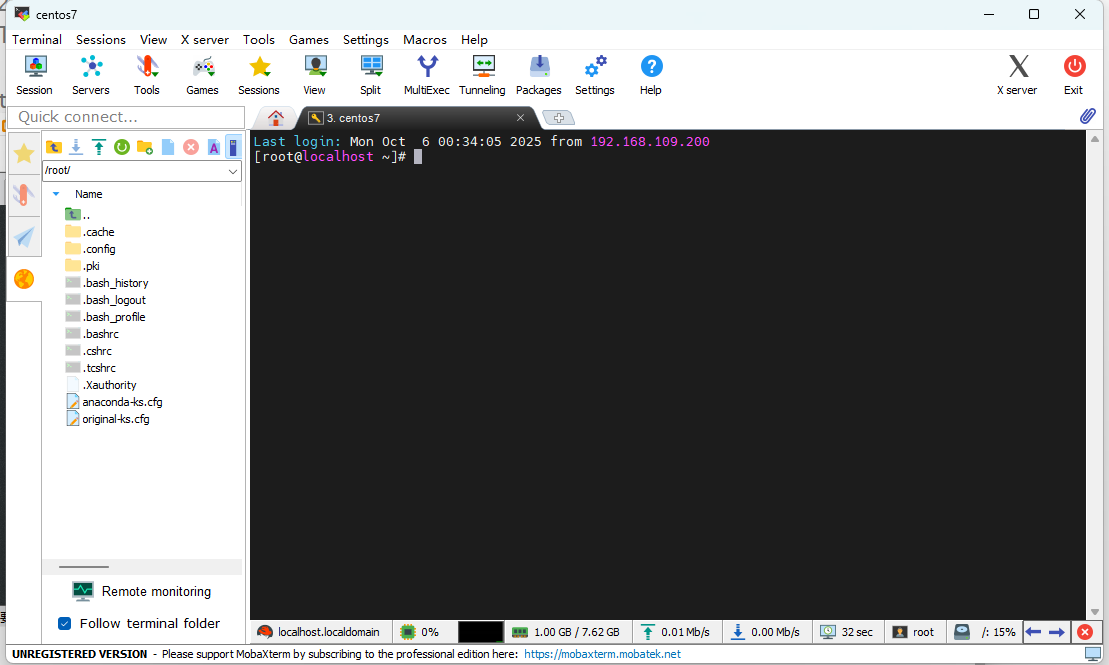
命令基础
1
2
3
4
5
|
[root@localhost ~]# passwd
Changing password for user root.
New password:
Retype new password:
passwd: all authentication tokens updated successfully.
|
1
2
3
4
5
|
[root@localhost ~]# ls
anaconda-ks.cfg  original-ks.cfg
[root@localhost ~]# mkdir hello
[root@localhost ~]# cd ..
...
|
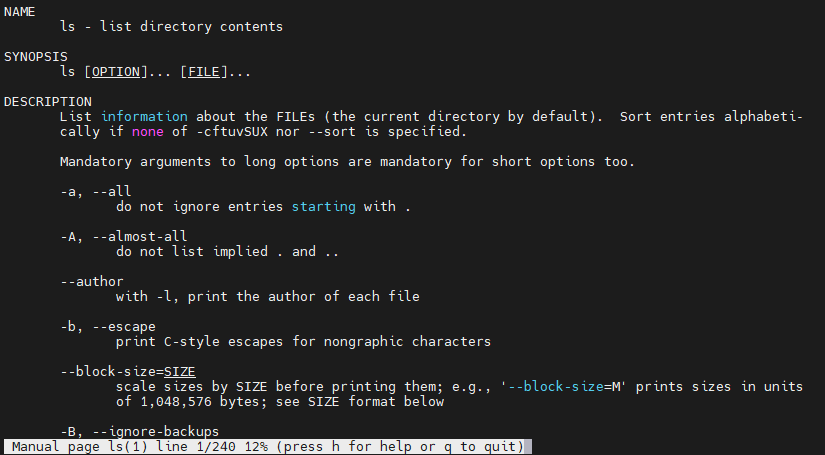
文件与目录
1
2
3
|
[root@localhost /]# pwd
/
[root@localhost /]# cd home
|
- 使用
ls 命令的不同选项来查看文件与目录的属性 。
 1
 2
 3
 4
 5
 6
 7
 8
 9
10
11
12
13
14
15
16
17
|
[root@localhost /]# ls -l
total 24
lrwxrwxrwx.   1 root root    7 Sep 28 08:05 bin -> usr/bin
dr-xr-xr-x.   5 root root 4096 Sep 28 16:34 boot
drwxr-xr-x.  19 root root 3260 Oct 16 03:17 dev
......
[root@localhost /]# ls -lh
total 24K
lrwxrwxrwx.   1 root root    7 Sep 28 08:05 bin -> usr/bin
dr-xr-xr-x.   5 root root 4.0K Sep 28 16:34 boot
drwxr-xr-x.  19 root root 3.2K Oct 16 03:17 dev
......
[root@localhost /]# ls -t
root  etc  tmp  run  dev  sys  proc  opt  boot ...
[root@localhost /]# ls -a
.   bin   dev  home  lib64  mnt  proc  run   srv  tmp  var
..  boot  etc  lib   media  opt  root  sbin  sys  usr
|
1
2
|
[root@localhost /]# mkdir test
[root@localhost /]# rmdir test
|
-
创建零长度的文件 。
-
拷贝、移动、重命名、链接及删除文件 。
 1
 2
 3
 4
 5
 6
 7
 8
 9
10
11
12
13
|
[root@localhost /]# mkdir test
[root@localhost /]# rmdir test
[root@localhost /]# touch test.txt
[root@localhost /]# cp test.txt test_cp.txt
[root@localhost /]# mv test.txt text_rename.txt
[root@localhost /]# ln test_cp.txt test_cp_hardlink.txt
[root@localhost /]# ln -s test_cp
test_cp_hardlink.txt  test_cp.txt
[root@localhost /]# ln -s test_rename_softlink.txt
[root@localhost /]# rm test*
rm: remove regular empty file ‘test_cp_hardlink.txt’? y
rm: remove regular empty file ‘test_cp.txt’? y
rm: remove symbolic link ‘test_rename_softlink.txt’? y
|
- 软链接:适合需要跨分区或对目录建立快捷方式的场景。
- 硬链接:适合在同一分区内共享文件内容且不希望因删除源文件而失效的场景。
1
2
|
[root@localhost /]# cat bin
cat: bin: Is a directory
|
修改文件和目录权限
1
2
3
4
5
6
7
|
[root@localhost test]# mkdir test1
[root@localhost test]# touch test.txt
[root@localhost test]# echo "hello" >> test.txt
[root@localhost test]# ls -l
total 4
drwxr-xr-x. 2 root root 6 Oct 16 03:43 test1
-rw-r--r--. 1 root root 6 Oct 16 03:44 test.txt
|
-rw-r--r-- ,共 10 个字符:
权限字符:
r (Read):读取权限(4)w (Write):写入权限(2)x (Execute):执行权限(1)-:无对应权限(0)
格式:chmod [用户][操作][权限] 文件名
- 用户:
u(所有者)、g(所属组)、o(其他)、a(所有)
- 操作:
+(添加)、-(移除)、=(设置)
1
2
3
4
|
[root@localhost test]# ls -l
total 4
drwxr-xr-x. 2 root root 6 Oct 16 03:43 test1
-r--r--r--. 1 root root 6 Oct 16 03:44 test.txt
|
vi 编辑器
-
创建一个文件 。vi filename
-
保存并退出一个文件及不保存退出一个文件 。
命令模式下,:wq 保存退出,:q! 直接退出
上下左右:kjhl
单词:w 移动到下一个单词开头;b 移动到上一个单词开头
行首 ^,行尾 $
文首 gg ,文尾 G
光标前:i 行首I
光标后:a 行尾A
下一行:o 上一行O
所在字符:nx
所在行:ndd
到行首 d^ 到行尾 d$
当前字符:r
到行尾:R
:set number 设置行号
:!command 执行
替换::%s/old/new/g(old 为要替换的旧内容,new 为新内容,% 表示整个文件,g 表示全局替换)
查找:/pattern,n下一个,N上一个
文件操作进阶
- 通配符应用:在
/usr/bin 目录下,使用通配符查找所有以字母 a 开头的文件名,并仅列出文件名。
1
2
3
4
|
[root@localhost bin]# ls a*
a2p                                  abrt-merge-pstoreoops            appstream-compose
abrt-action-analyze-backtrace        abrt-retrace-client              appstream-util
...
|
1
2
|
[root@localhost bin]# find /tmp -type f -printf "%f\n"
.X0-lock
|
- 文件内容排序:将
/etc/passwd 文件中的内容按字母顺序和逆序分别显示。
1
2
3
4
5
6
7
8
|
[root@localhost tmp]# sort /etc/passwd
abrt:x:173:173::/etc/abrt:/sbin/nologin
adm:x:3:4:adm:/var/adm:/sbin/nologin
...
[root@localhost tmp]# sort -r /etc/passwd
usbmuxd:x:113:113:usbmuxd user:/:/sbin/nologin
unbound:x:991:986:Unbound DNS resolver:/etc/unbound:/sbin/nologin
...
|
- 头部和尾部显示:显示
/etc/passwd 文件的前5行和后10行的内容。
1
2
3
4
5
6
7
8
9
|
[root@localhost tmp]# head -n 5 /etc/passwd
root:x:0:0:root:/root:/bin/bash
bin:x:1:1:bin:/bin:/sbin/nologin
daemon:x:2:2:daemon:/sbin:/sbin/nologin
adm:x:3:4:adm:/var/adm:/sbin/nologin
lp:x:4:7:lp:/var/spool/lpd:/sbin/nologin
[root@localhost tmp]# tail -n 10 /etc/passwd
......
|
文件权限进阶
- 软链接与硬链接:在你的用户主目录下,为
/usr/bin/cat 文件分别创建软链接和硬链接,并解释两者的区别。
见上
- 权限恢复:如何将某个目录的权限恢复到默认的
rwxr-xr-x 形式?请使用两种不同的 chmod 语法来实现。
1
2
|
[root@localhost test]# chmod u=rwx,g=rx,o=rx test1
[root@localhost test]# chmod 755 test1
|
r-4 ; w-2 ; x-1
vi 编辑器进阶
- 复制与粘贴:在
vi 中,一次性将一段文本(例如三行)复制到文件的末尾。
命令行 nyy 复制n行
命令行 p 粘贴
- 撤销与重做:掌握在
vi 中撤销(undo)和重做(redo)操作的方法。
撤销:u
重做:ctrl+r